 ColonyCat
Emergency reports
A report is for the urgent stuff: a sick cat that needs a vet today, an injured cat that needs trapping now, found kittens in someone's garage, a new colony you stumbled onto. Things that can't wait for the regular cycle.
The form is short on purpose, when something is bleeding or starving, you don't want to fill in fifteen fields. ColonyCat asks for the minimum and gets out of your way.
What you're about to do
- From Report in the top nav, file a report in under thirty seconds.
- The report shows up on the dashboard so anyone in your rescue can pick it up.
- Optionally, the public version of this same form lets strangers report cats they find, see the bottom of this chapter.
Step 1: File a report
Click 🚨 Report in the top nav. You see a short form with a few mandatory fields and a photo button.
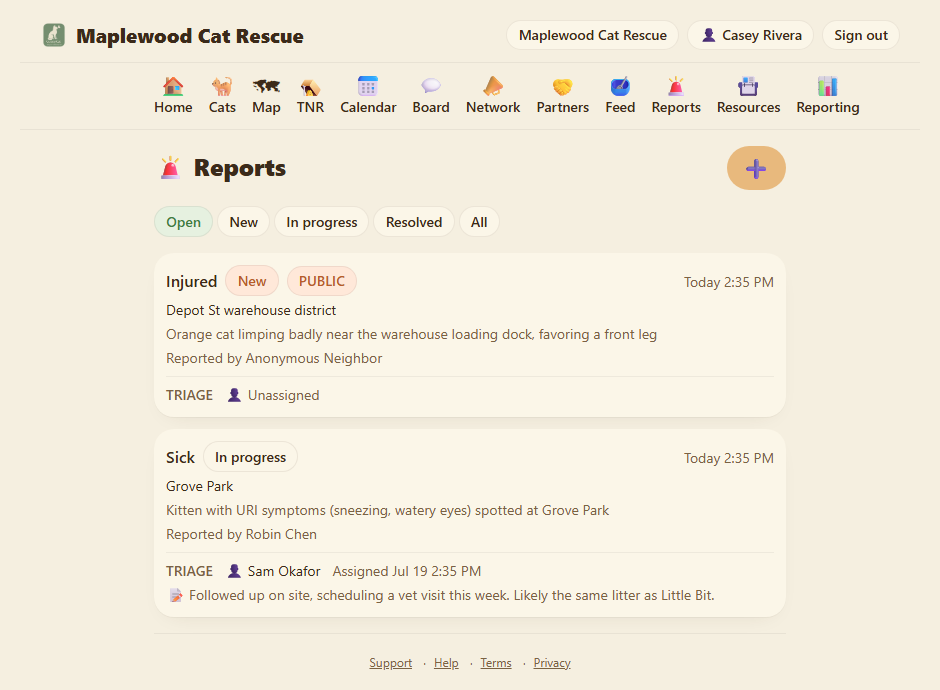
Type. What kind of report:
- Injured. Cat is hurt and needs trapping or a vet now.
- Sick. Sneezing, eye gunk, looks unwell, needs a look.
- Pregnant. A pregnant cat to plan around.
- Cat/Kittens Found. A cat or a litter turned up that needs attention.
- New colony. You noticed cats living somewhere you didn't know about.
- Environmental. A structural or weather emergency at a colony, flooding, a collapsed shelter, a blocked feeding spot.
Location. Where the cat or kittens are. Street address if you have it, landmark if not. "Behind the dumpsters at Wexler's grocery" is fine.
Description. A sentence or two on what you're seeing. "Orange tabby, looks like a broken leg, dragging the back left. Friendly enough to approach."
Photo (optional but helpful). Tap the photo button on your phone, snap one, attach. A photo helps whoever picks up the report know what they're looking for.
Reporter name and contact. Pre-filled with your account info. Change if a different person is filing on someone else's behalf.
Click Submit report.
Step 2: Picking up a report
Reports land on the dashboard, on the Reports tile, with a count.
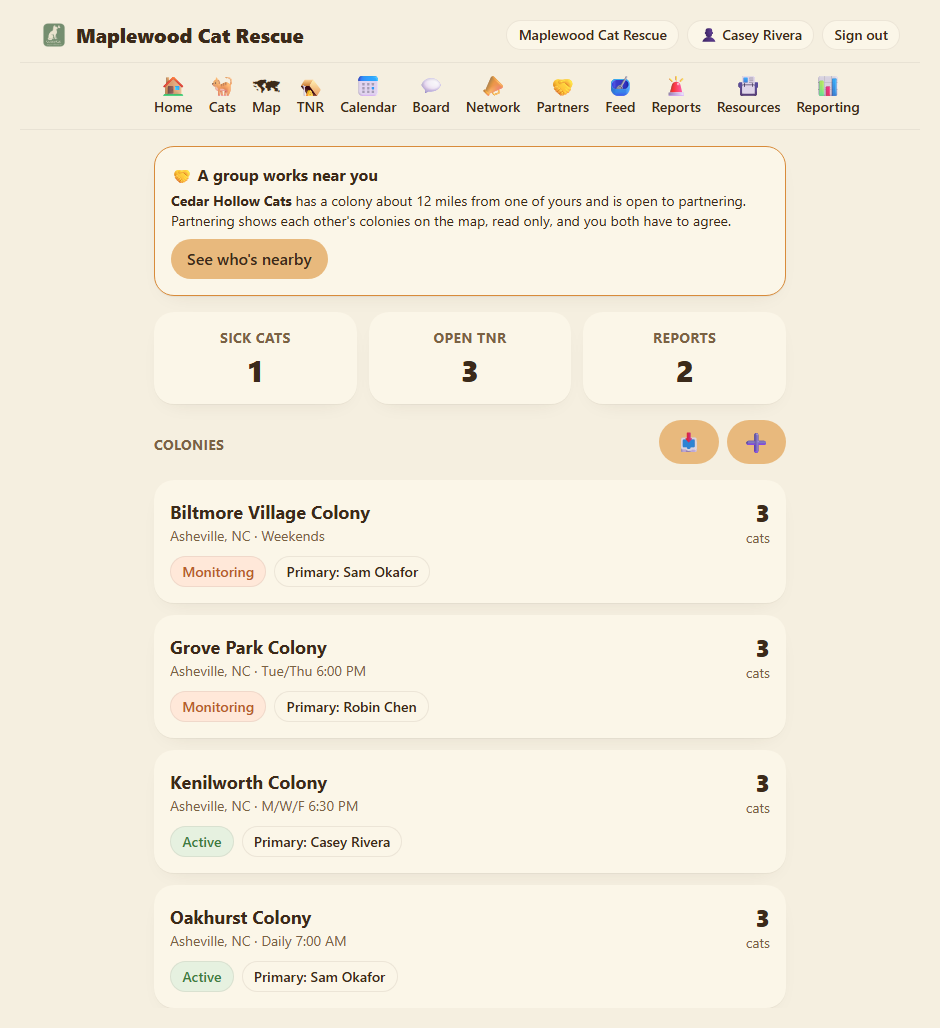
Click into one to see the details. The full report page shows all the information and the triage panel where OrgAdmins and OrgStaff can manage it.
Step 3: Triage (admins and staff only)
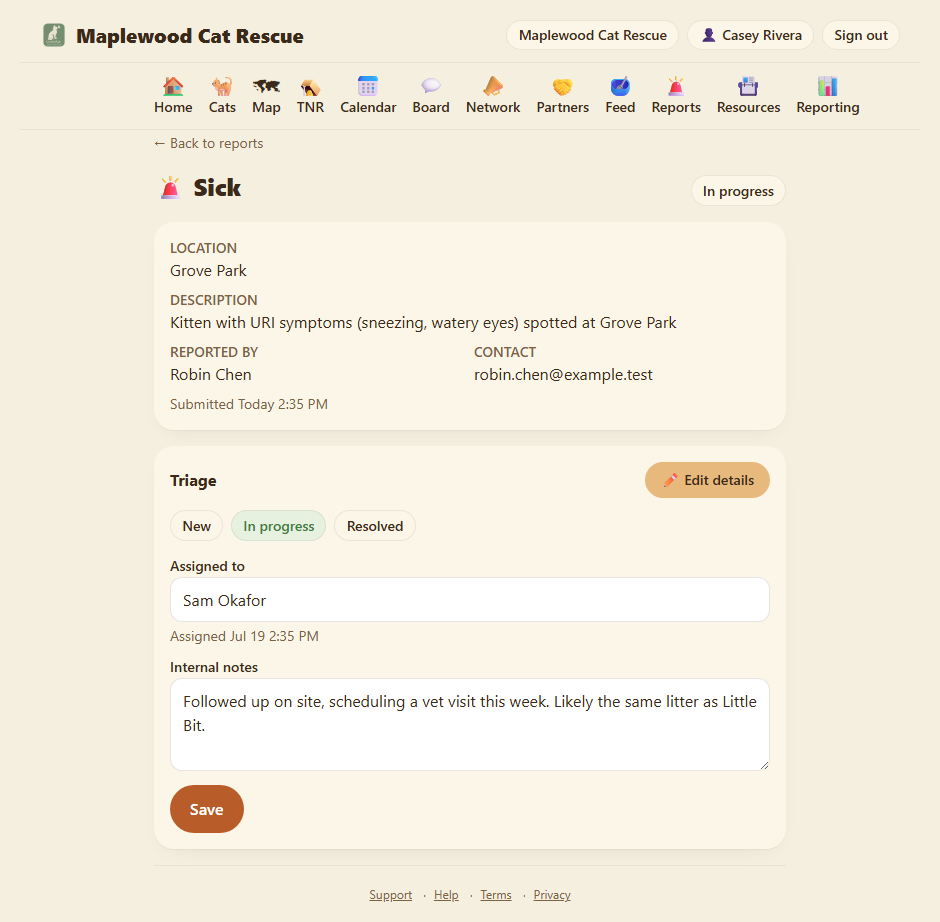
Only OrgAdmins and OrgStaff can change a report's status or assignment. On the report detail page, you'll see a Triage section:
Status chips. Three states: New, In progress, Resolved. Click a chip to move the report. One special case: "New colony" reports can also be promoted to a real colony record (see below).
Assigned to. Type the name of whoever is handling this report. You can leave it blank. When you type a name, the assignment time is recorded so you know when it got picked up.
Internal notes. Add details here that are only for your team: what you've tried, what's next, where the cat ended up. This field is private to your staff and admins.
Promote to colony (New colony reports only). If the report describes a real new colony you want to start managing, one click creates a Monitoring-status colony from the report and marks the report Promoted. This is a permanent state (you can't change it back), so use it when you're sure. The report stays in your list marked Promoted so there's a paper trail.
Step 4: Who gets notified
You don't have to keep refreshing the dashboard to catch new reports. Every new report, whether a teammate files it from inside the app or a stranger files it from your public page, emails your admins and staff. Regular members (OrgUsers) don't get these; the people who triage do.
Each admin and staff member controls this for themselves: open your profile (top right) → Notifications → New report alerts. It's on by default, so you're covered from day one. Turn it off if you'd rather just watch the dashboard.
Why only admins and staff? Reports are a triage queue, the people who pick them up should hear about them, and everyone else shouldn't get pinged for work they don't own. If you want a volunteer to receive report alerts, promote them to OrgStaff (Chapter 7).
Step 5: Public reports (optional)
Here's a useful feature: your rescue's public page can include a "Report a cat" form that anyone can use, no account needed. A neighbor who spots a sick cat can fill it in and the report comes straight to you.
To turn this on, go to your Organization profile (top right) → Public page → scroll to Accept emergency reports from anonymous visitors and tick it. You can also write a custom message for the thank-you page, "Thanks for helping us look out for the cats. We'll get back to you within a day."
When someone files a public report:
- They don't need to make an account.
- The form asks for type, location (with an optional geolocate button to fill in their current address), description, photo, name, and email. Location is split into street address, city, state, and ZIP so we can geocode it properly.
- After they submit, they see a thank-you page with your custom message (or a default one) plus links to your Donate and Wishlist if you've set those up.
- The report lands on your dashboard with a little "PUBLIC" tag.
- You triage it the same way as internal reports.
This is how grassroots rescues actually expand their network, neighbors who spot things become your eyes.
Where you are now
- You can file an emergency report in under thirty seconds.
- Your team can pick up reports and manage them with status, assignment, and notes.
- You can optionally let the public file reports too, and they see a thank-you page after submitting.
In Chapter 7 we cover inviting your teammates so they can all do this work alongside you.
A few sanity-savers
- A report is a fast trigger, not a database entry. Don't try to write the cat's whole life story on a report. Get the bare facts down, file it, then take action and update the record properly later.
- Assigning matters even if you're solo. Even if you're the only one who'll act on it, typing your name and moving the status to In Progress lets your future self know you saw it and what you were doing about it.
- Public reports are anonymous. Submitters give their name and email so you can reply, but they're not making an account. If you want to invite them to join, you'd have to do it manually by email.
- Reports stay in the system after they're resolved. You can dig back through resolved reports later to remember who reported what, useful for thanking the reporter or for spotting patterns ("third cat from this block in two months, there's a colony we don't know about").
- The Promote button is permanent. Once you promote a "New colony" report to a real colony, you can't undo it. The report stays marked Promoted as a record. Only promote when you're certain it's a real colony you want to manage.
→ Next: Chapter 7: Inviting your team