 ColonyCat
The help network
The help network connects rescue groups near you so you can ask for what you need: a rescue to take a hard-to-place cat, a foster for a kitten with special needs, a ride to get a cat from point A to point B, supplies when you're low on traps or food, or urgent medical help when a cat needs a vet fast and yours is closed. It's how you reach other ColonyCat groups when your own team can't solve a problem alone.
This chapter covers joining the network, posting a request, and managing the requests you receive from others.
What you're about to do
- Open 📣 Help network and understand how nearby groups see your requests.
- Join as an OrgAdmin and set a receive radius so you hear about requests within a distance you choose.
- Post a request when you need something from other groups.
- Manage requests: mark your own as resolved, skip ones you can't help with, and watch them auto-expire after 30 days.
Step 1: Open the help network
Tap 📣 Help network in the navigation. (Note: it is a top-level nav item alongside Cats, Map, and TNR.)
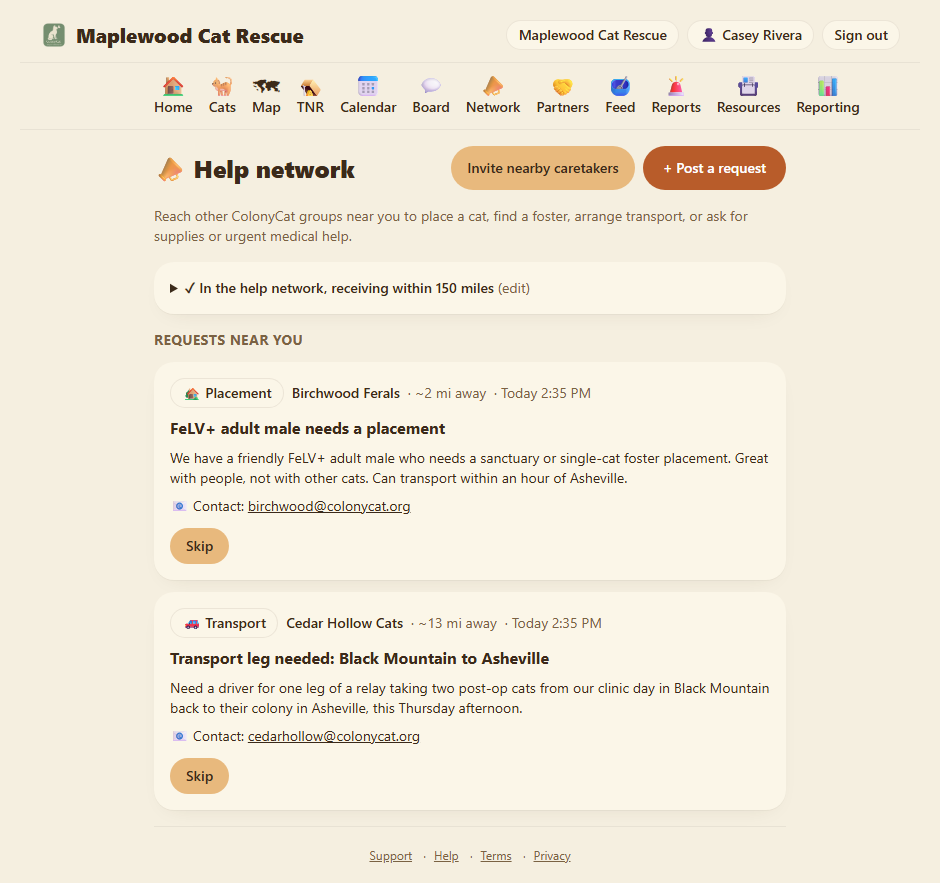
The page has three main sections: a settings card where you join the network, a "Your open requests" section (if you've posted any), and a "Requests near you" section where you see requests from other groups that are close enough and within your chosen radius.
If you're not an OrgAdmin, you see a note that your group hasn't joined yet and that an OrgAdmin needs to turn it on.
Step 2: Join the help network (OrgAdmin only)
As an OrgAdmin, tap the settings card to open or expand it. The first thing you'll see is a location requirement: the help network uses distance to match requests, so your group needs a geocoded street address. If the card shows a banner saying "A location is required for the help network", add it on your organization profile first (ask a staff member to help if you're not sure how).
Once you have a location, you see two settings:
Join the help network. Check this box to turn the network on. When it's off, your group neither sends nor receives; when it's on, your group can post requests and see requests from others.
Receive requests within. Pick a radius: 50 miles, 150 miles, 500 miles, or Nationwide. This is your "listening range". You'll only see requests from other groups within this distance from your location. It's your way of saying "I'm interested in requests up to this far away, but not further."
Once you're happy with these settings, tap Save settings. You see a confirmation that your group is now in the help network and the radius you chose.
Step 3: Understanding how the network finds matches (reciprocity)
Here's the key rule that makes the network fair to everyone: a request reaches you only when both conditions are true:
- The distance from the poster's location to your location is within BOTH the distance you listen to (your receive radius) AND the distance the poster chose to broadcast.
- The poster opted in to the network (and has a location).
In plain terms: if you listen up to 150 miles and a nearby group posts a request that reaches out to 500 miles, you see it (because 0 miles is less than 150). But if you listen to only 50 miles and someone 100 miles away posts to 500 miles, you don't see it. And if a group hasn't joined the network or doesn't have a location on file, their requests never reach anyone.
This means the poster controls how far their request spreads, and you control how far you listen. That balance keeps the network useful for everyone: you won't get buried in requests from far away, but you can reach out nationwide if you need to, and nearby groups will see you.
Step 4: Post a request
As an OrgAdmin, tap the + Post a request button at the top of the page. You land on a form.
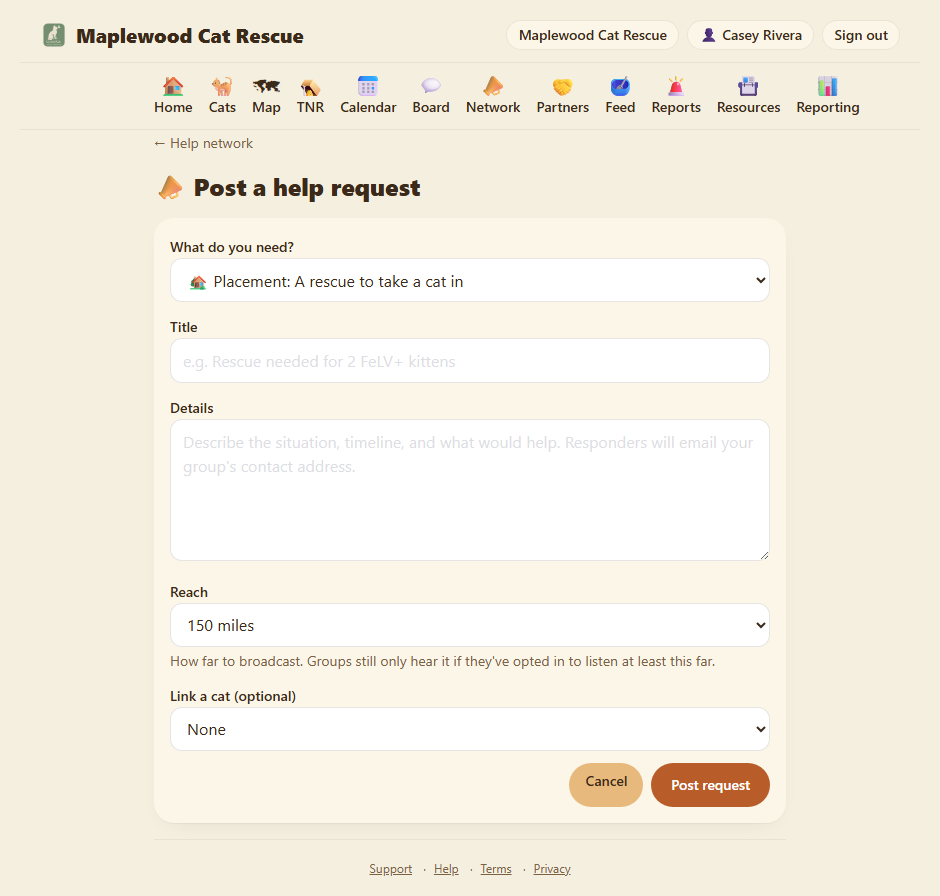
The form:
What do you need? A dropdown with five categories. Pick one:
- 🏡 Placement: You need another rescue to take a cat in.
- 🏠 Foster: You need a temporary foster home.
- 🚗 Transport: You need a ride or a relay leg to move a cat.
- 📦 Supplies: You need traps, food, meds, equipment, or other gear.
- 🚑 Urgent medical: A cat needs vet help and it can't wait.
Title. A short headline. "Rescue needed for 2 FeLV+ kittens", "Foster available for bonded pair", "Transport needed from Atlanta to Nashville", etc.
Details. Describe the situation, timeline, what would help, and anything someone responding should know. "We trapped two kittens yesterday and both tested FeLV+. We have the space and food for them, but we need a rescue with FeLV+ expertise to take over care. They're in a cage and doing OK." Be as specific as you can.
Reach. How far to broadcast this request. Pick 50 miles, 150 miles, 500 miles, or Nationwide. Remember: groups will only see this if your reach overlaps with the farthest distance they're listening. If you pick 50 miles, only groups within 50 miles who listen at least 50 miles will see it. If you pick Nationwide, any group in the network who listens at least 500 miles will see it. (Groups listening nationwide always see nationwide posts.)
Link a cat (optional). If this request is about a specific cat in your system, you can pick it from the dropdown. When you do, other groups see the cat's name in the request. (They see the name only, not the full profile; the cat stays private to your group.)
Tap Post request. Your request is live, nearby groups are notified by email, and it appears in their "Requests near you" section.
Step 5: Manage requests
Your own posts. Once you post a request, it appears under "Your open requests" on the help network page. If the request is resolved (the cat found a rescue, the transport is done, the supplies arrived), tap ✓ Mark resolved. It disappears from the "Requests near you" section so other groups know you don't need help anymore.
Requests from others. Under "Requests near you", you see posts from other groups that are close enough and within both radii. If you can help, click the contact email and reply directly. If you can't help or aren't interested, tap Skip to hide it from your list. (Skipping is reversible; if you change your mind later, refresh the page and you can unskip it by visiting the request again, or just skip it again if it's still there.)
Auto-expiration. Posts stick around for 30 days, then they disappear automatically. If a group forgets to mark a request resolved, it's gone after a month so the feed doesn't get cluttered with stale requests.
Step 6: Notifications
By default, when a request reaches your group, every OrgAdmin gets an email right away. The email includes the category, title, details, and the poster's contact info so you can reply.
If you want to turn off help network emails, open My profile (tap your name at the top), go to the Notifications tab, and toggle Help network requests off. This is per-person, so you can turn emails off for yourself but leave them on for other admins.
(If you're not an OrgAdmin, you can see the help network page and read requests in the app, but the email toggle only appears for OrgAdmins.)
Step 7: Inviting nearby groups
The help network only works when the groups around you are on it too. The more rescues in your area using ColonyCat, the more help you can ask for and give. On the help network page, tap Invite nearby caretakers to copy or share a message introducing ColonyCat to other groups in your area. They'll see it's free to start and understand why joining the network benefits everyone.
Where you are now
- Your group can join the help network and set a listening radius that makes sense for you.
- You can post requests and reach other groups within a fair distance (both your reach and their listening radius).
- You can manage requests you receive: help if you can, skip if you can't, and let them auto-expire after 30 days.
- Your team gets immediate email alerts when a request reaches you, and can turn those off if needed.
A few sanity-savers
- You control how far you listen. The receive radius is yours to adjust any time. If you're only comfortable helping nearby, pick 50 miles. If you want to help statewide, pick 500 miles or Nationwide.
- The poster controls how far they reach. When you post, you pick how far the request spreads. You can ask for placement nationwide on a FeLV+ cat and a nearby group looking for exactly that can help.
- Contact is your group's email. Responses go to the email address you set as your group's contact (public email if you set one, or slug@colonycat.org by default). Make sure someone checks that inbox.
- Skipping is private and reversible. When you skip a request, only you see that skip; other groups don't know. You can change your mind and unskip any time.
- Requests don't clog forever. Posts auto-expire after 30 days, so the feed stays fresh. If you need to extend a request, just post it again.
- The network grows by word of mouth. The more groups nearby you invite, the more requests you'll be able to answer and the more your own requests will get responses. It's network effect: everyone's better off when more rescues are on it.
→ All chapters: Contents