 ColonyCat
The calendar
The calendar is your group's shared schedule. It pulls in your TNR events automatically (trap nights, surgery days, returns) and lets you add anything else the team needs to coordinate: a vet appointment for one cat, a clinic spay day, a foster pickup, a fundraiser, or just a planning meeting.
This chapter covers viewing the calendar, adding an event, inviting people, and subscribing from your phone's calendar app.
What you're about to do
- Open 📅 Calendar and switch between the list and month views.
- Add an event and invite attendees, members and outside guests.
- Let people RSVP, and get notified when things change.
- Optionally subscribe so events land in Google, Apple, or Outlook calendar.
Step 1: Open the calendar
Tap 📅 Calendar in the navigation. It opens on a List view: an agenda of what's coming up, newest at the top, with past events tucked into a collapsible section below.
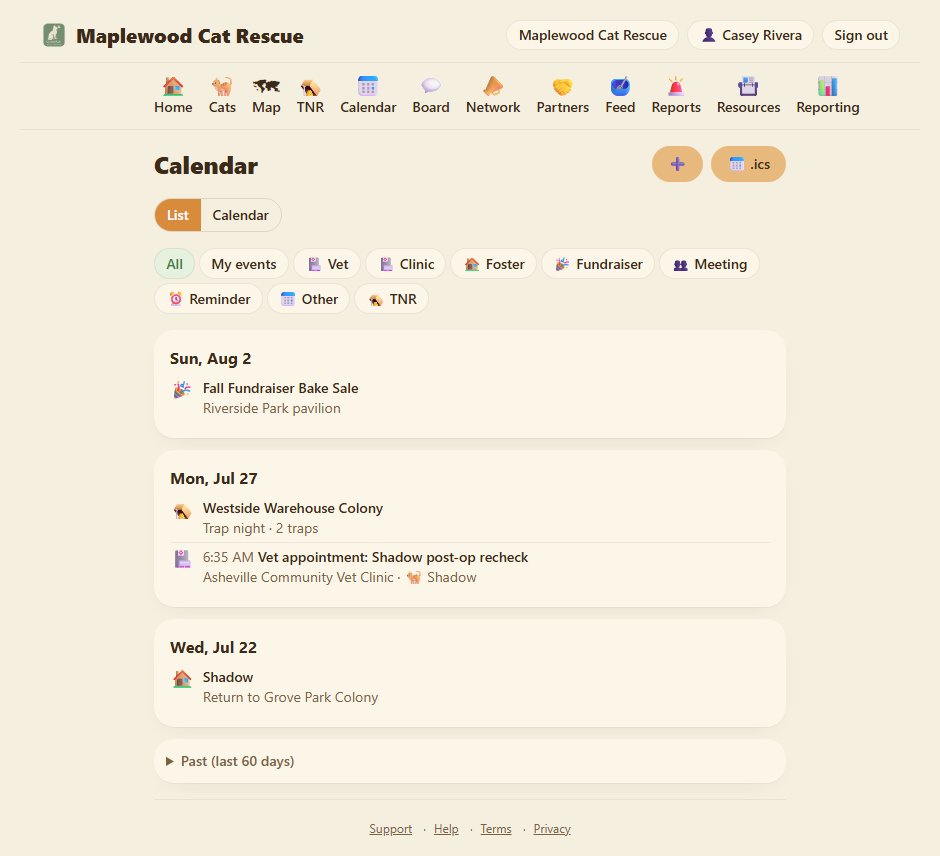
Tap Calendar in the toggle to switch to a month grid instead. Your choice is remembered for next time.
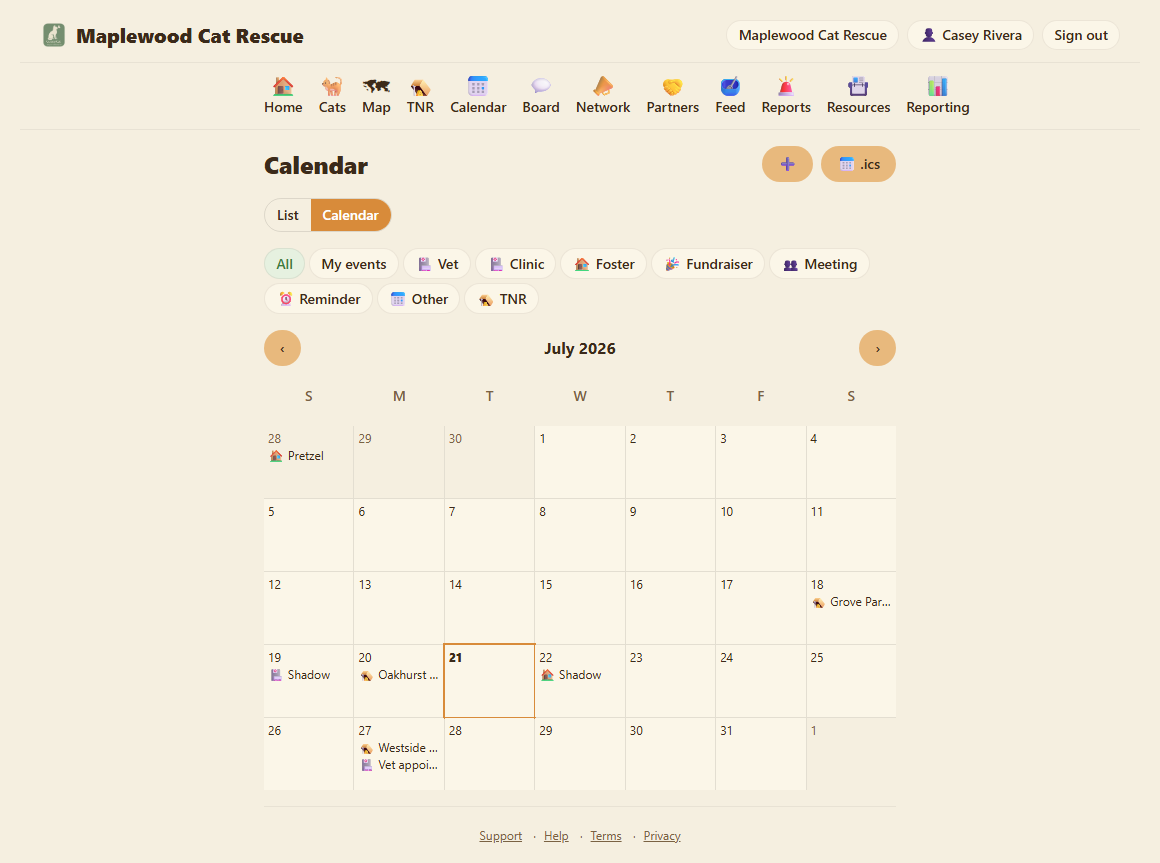
The filter chips let you narrow things down: tap a type (Vet, Clinic, Meeting, and so on), tap 🪤 TNR to see only trap-and-clinic activity, or tap My events to see just the ones you're part of.
TNR shows up automatically. Trap nights, surgery days, and return days from the TNR workflow appear on the calendar without you doing anything. They're read-only here, to change one, open it under 🪤 TNR. Everything else on the calendar is an event you create.
Step 2: Add an event
Tap the ➕ at the top of the calendar. (Adding events is an OrgAdmin/OrgStaff job. Regular members can view and RSVP, but not create.)
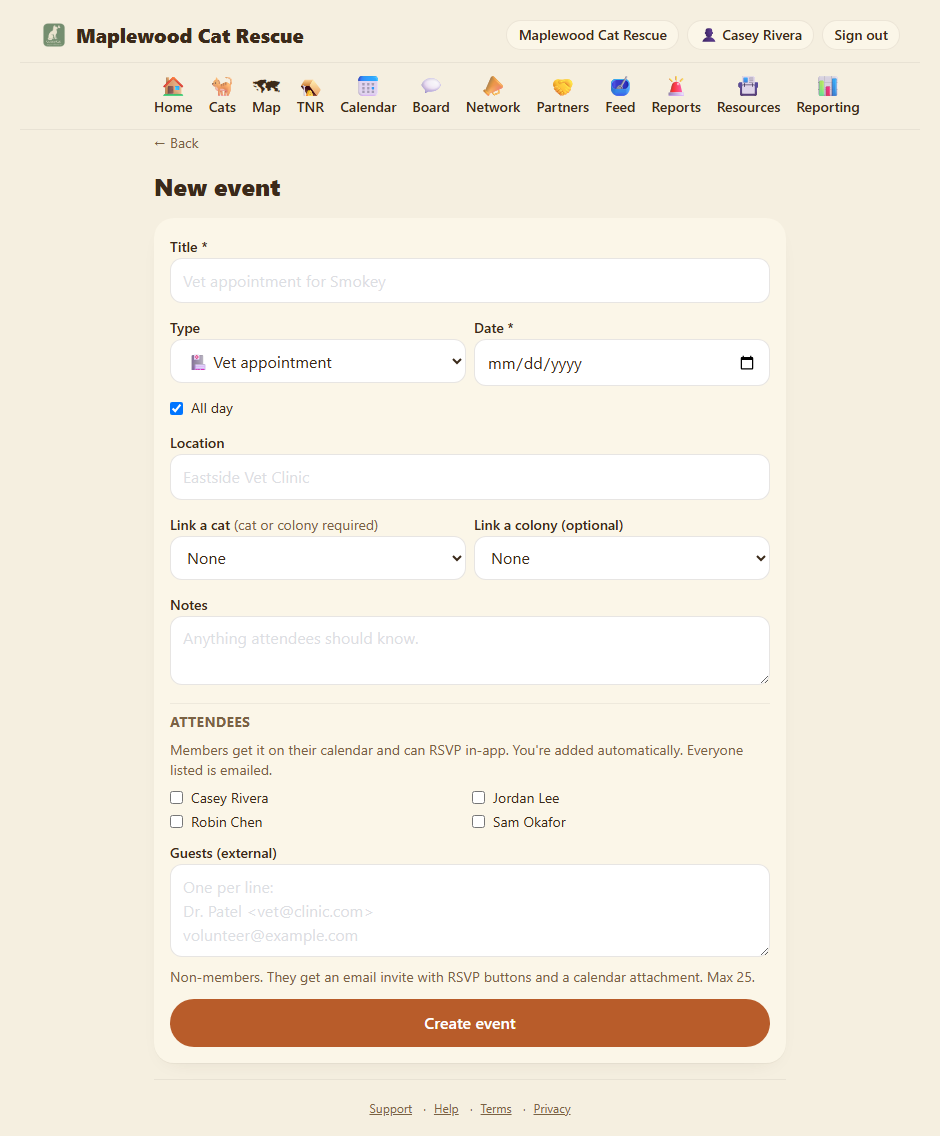
The form:
Title. What it is. "Vet appointment for Smokey" or "Saturday spay clinic."
Type. Vet appointment, Clinic / spay day, Foster pickup/return, Fundraiser / event, Meeting, Reminder, or Other. Just picks the icon and lets people filter.
Need a type we don't have? An OrgAdmin can add your own. On the Organization profile page there's an Additional event types (comma separated) field, type something like "Feeding, Outreach, Vaccine clinic" and those choices appear in this picker and as filter chips for everyone. Remove one later and it simply stops being offered; events you already labeled with it keep their label.
Date. When it happens.
All day vs start / end times. Leave "All day" ticked for things like a fundraiser, or untick it to set a start and end time for an appointment.
Location. Where. "Eastside Vet Clinic."
Link a cat / colony (optional). Tie the event to a specific cat or colony. A vet appointment linked to a cat also shows up on that cat's profile under 📅 Upcoming.
Notes. Anything attendees should know.
Attendees. Tick the members who should be on it, and/or list outside guests (a vet, a volunteer who isn't in your ColonyCat group) by typing one per line as Name <email@example.com>. You can add up to 25 outside guests per event. You're added automatically. Everyone you list gets an email.
Tap Create event. You land on the event page.
Step 3: RSVPs
Once an event has attendees, everyone can say whether they're coming.
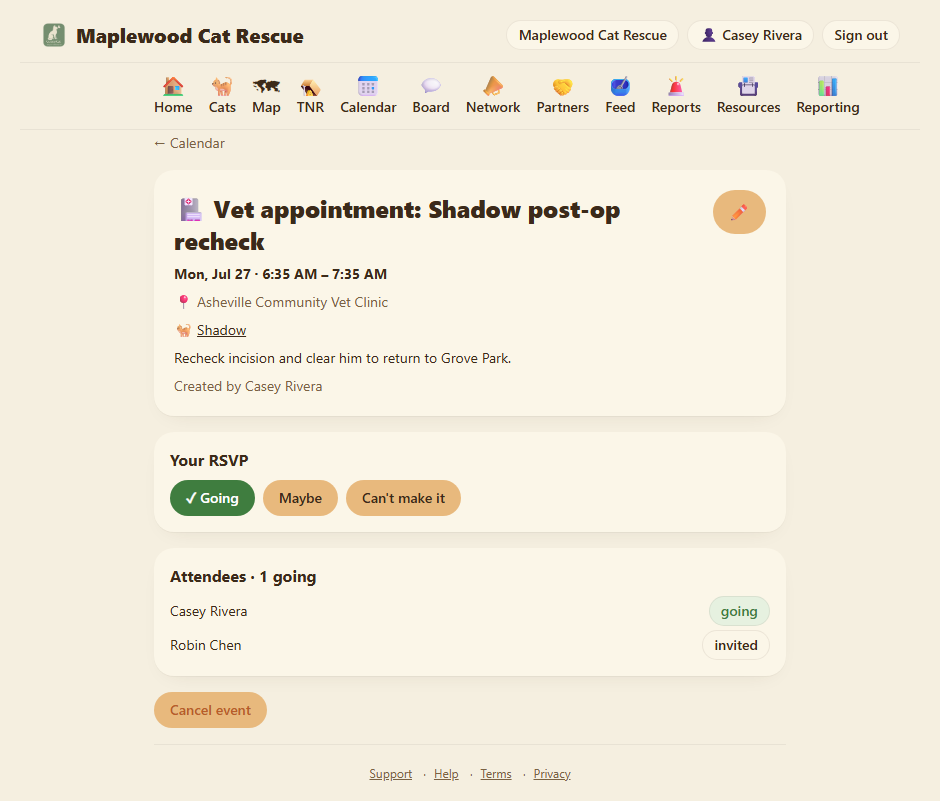
Members RSVP right in the app: open the event and tap ✓ Going, Maybe, or Can't make it. The tally updates so you can see who's in.
Guests (outside people) get an email with the same three buttons. Tapping one records their answer on a public RSVP page, no login, no account needed. That same link is how they decline if they'd rather not get further emails.
Step 4: Notifications
ColonyCat keeps everyone in the loop without you having to chase people:
- When you add someone, they get an invitation email (with a calendar attachment for guests).
- When you change the time of an event, everyone on it gets an "updated" email.
- When you cancel an event, everyone gets told.
- The day before, attendees who haven't declined get a reminder.
Step 5: Subscribe from your own calendar app
Tap 📅 .ics at the top of the calendar to download a subscription file, or copy the link into Google Calendar, Apple Calendar, or Outlook. Your ColonyCat events (and TNR schedule) then show up alongside the rest of your life.
Past events don't pile up forever. The subscription feed only carries recent history (about two weeks back) so your calendar app doesn't fill with old trap nights. Upcoming events always show in full.
Where you are now
- You can see your whole group's schedule in a list or a month grid.
- You can add events, invite members and outside guests, and collect RSVPs.
- Everyone gets notified of invites, changes, cancellations, and day-before reminders.
A few sanity-savers
- Members RSVP in the app, guests RSVP by email. Same three answers either way. You never have to chase a reply by text.
- Link a cat to keep its appointments together. A vet visit linked to a cat appears on that cat's profile, so the next person who opens the cat sees what's scheduled.
- Only OrgAdmins and OrgStaff create or edit events. Regular members can see everything and RSVP, which keeps the calendar from turning into a free-for-all.
- Cancelling notifies everyone. No silent disappearances, if plans fall through, cancel the event and the team finds out.
→ Next: Chapter 13: The member board