 ColonyCat
Your account
Beyond your rescue, you have a personal account on ColonyCat: your name, email, phone, address, the rescues you belong to, and your sign-in method. This chapter covers managing it, signing in faster with a passkey, and what happens if you want to export or delete everything.
What you're about to do
- Open your My profile to edit name, email, phone, address.
- Opt into the volunteer directory (so other rescues can find you).
- Set up a passkey for one-tap sign-in (no more email codes).
- Manage your notification preferences per organization.
- Know how to download your data or delete your account.
Step 1: Edit your profile
Click your name (top right). You land on your profile page.
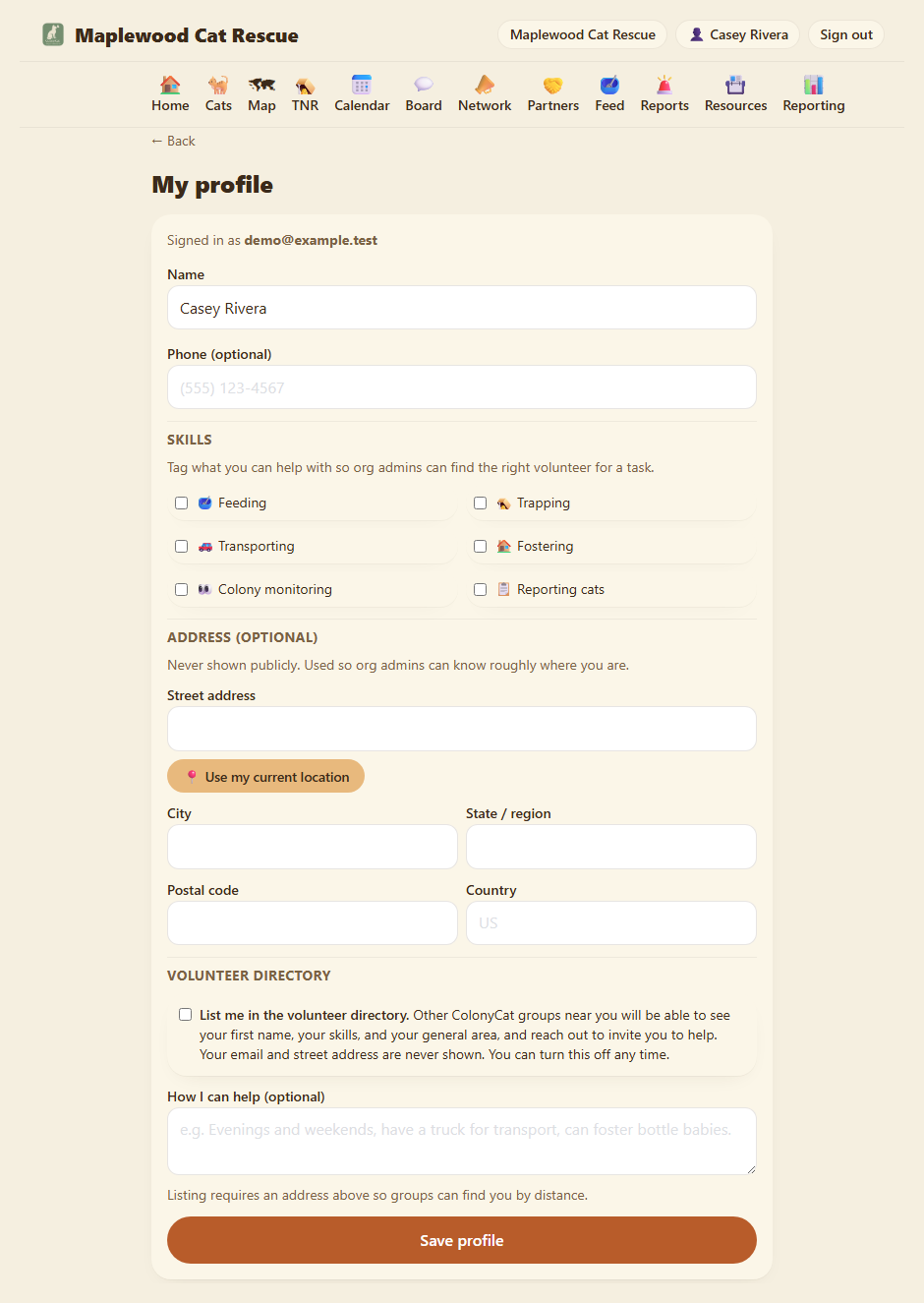
You can change:
- Your name. Whatever you go by.
- Email address. See below, there's a confirmation flow because email is also your sign-in.
- Phone. Optional. Not shown publicly anywhere.
- Address. Optional. Used for the volunteer directory's distance ranking and the organization's "near you" search.
- Skills. Skill tags (feeding, trapping, transport, etc.). Tick the ones that fit you. Organizations use this to find the right volunteer.
Click Save.
Step 2: Opt into the volunteer directory
Other ColonyCat groups in your area can find and reach out to volunteers in the volunteer directory if you choose to list yourself.
When you opt in:
- Your first name, your skills (the ones you ticked above), and your general area are shown to other rescues.
- Your email and street address are NOT shown.
- Distance is calculated from your address, so you must have one on file and it must be geocodable (a city and state are often enough).
- You can describe how you can help (evenings/weekends, have a truck, can foster, etc.) in the "How I can help" section.
- You can turn this off anytime.
To opt in, check List me in the volunteer directory and fill in or update your address. Click Save.
Step 3: Changing your email
Email change is two-step to make sure you don't lock yourself out:
- You enter a new email and click Save.
- A confirmation link goes to the new address. Click it.
- A heads-up notice also goes to the old address, with a "revert" link in case it wasn't you.
Until you click the confirmation link in the new inbox, the change isn't applied. You stay signed in with the old email.
Lost access to the email on your account? Email us at hello@colonycat.org from any address. We'll verify you're who you say you are and help recover the account.
Step 4: Set up a passkey
Signing in with an emailed code is fine but a little slow. A passkey uses your phone or computer's built-in security (face unlock, fingerprint, PIN) to sign you in instantly with no email round-trip. A passkey works across all of ColonyCat: register once and it signs you in everywhere on colonycat.org and every rescue's subdomain.
On the profile page, find Passkeys and click 🔑 Add a passkey. Your browser prompts you to use Face ID, Touch ID, Windows Hello, or whatever your device supports. Tap through the prompt. Done.
Next time you sign in, click the 🔑 Sign in with a passkey button on the sign-in page. Your phone or computer recognizes you and you're in. No email, no clicks.
You can register multiple passkeys, one for your laptop, one for your phone, one for a backup phone. Each works independently.
Lost your passkey device? Sign in with an emailed 6-digit code (which always still works). Then go to your profile and delete the dead passkey. Add a new one on a new device. If you lose access to the email itself, file a ticket via /support or reach out to hello@colonycat.org.
Step 4: Download your data
You can download everything ColonyCat has about you and your rescues. From the profile page, scroll down to Download my data and click. You get a JSON file with your account info, your memberships, and a separate file per organization including all colonies, cats, trap nights and catches, feedings, reports, audit log.
This is for your records, useful if you're switching tools, doing an annual archive, or just curious. Nothing is hidden.
Step 5: Delete your account
If you want to leave ColonyCat entirely, scroll down to Delete my account. You get a confirmation step explaining what will happen:
- Your account is scheduled for deletion 30 days from now.
- During those 30 days, you can sign back in and cancel the deletion.
- After 30 days, your account is permanently removed.
- Rescues you belonged to as OrgUser stay on ColonyCat (other members still need them); your name is replaced with "former member."
- Rescues you administered alone, that no longer have any other admin, are also scheduled for deletion. Promote another admin before deleting if you want the rescue to stay.
This is on purpose paced to be reversible. We never delete data without giving you time to change your mind.
Step 6: Cookie banner and privacy
If you noticed a small "We use one cookie to keep you signed in" banner at the bottom, that's it, that's the only cookie ColonyCat sets. No analytics, no tracking pixels, no third-party ad networks. The cookie just remembers you're signed in.
Click Got it to dismiss the banner. It won't come back.
The full Privacy Policy is at colonycat.org/privacy if you want to read what we do and don't do with data.
Where you are now
- Your account has your real info.
- You've optionally set up a passkey for faster sign-in.
- You know how to download or delete everything if you want.
In Chapter 11: the last one, we cover a quick markdown cheat sheet for the rich-text fields, plus a few power-user shortcuts.
A few sanity-savers
- You choose which emails you get. The Notifications section of your profile is a set of toggles, one per rescue you're in: the daily digest, TNR reminders, cat-note alerts, and New report alerts (when someone files a report, admins and staff only, on by default). Tick what you want, untick what you don't.
- Forwarded org mail. If you're an OrgAdmin on a rescue, mail sent to yourgroup@colonycat.org gets forwarded to your inbox by default. You can turn this off in your profile under Notifications if you'd rather have just one OrgAdmin handle inbound mail.
- The "Sign in with passkey" button only works after you've registered one. Before that, the button is just for show. Register first, then use it.
- One account, many rescues. Same email, same passkey. The switcher at the top right (when you have more than one rescue) lets you hop between them without signing out.
- Sign-out signs out everywhere. If you signed in on a library computer and forgot to sign out, sign in on your phone and go to Profile → Sign out all sessions. Wipes you out of every browser, immediately.
→ Next: Chapter 11: Tips and shortcuts